Navigation
Atomic Design
Level: Organism · Atomic Design methodology
The Navigation organism groups together several smaller UI atoms (logo, search input, icons) and molecules (category tabs, user action menus, cart bubble) into a single, unified header block that governs global site header navigation.
The Navigation organism is the main global site header. It provides users with search, category filtering, user settings, comparison lists, wishlist status, and shopping cart access. It spans the top of every storefront page and adapts dynamically between desktop and mobile layouts.
It exists in two variants: a full-featured desktop default layout with a multi-column mega-menu, and a collapsed mobile layout that uses a slide-out drawer.
Composition
Used inside: Default Layout · Checkout Layout (simplified variant)
Composed of: Logo · Category Menu (Mega Menu) · Search Bar · Wishlist Indicator · Compare Indicator · Account Menu · Mini Cart Trigger
Variants
| Variant | Slug | Where it is used | Distinguishing fields |
|---|---|---|---|
| Default | navigation-default |
Desktop viewports (≥ 1024px) | Full category menu bar, visible search input, hover-activated mega menu, inline utility links |
| Mobile | navigation-mobile |
Mobile/Tablet viewports (< 1024px) | Hamburger menu trigger, collapsible accordion category tree, bottom sticky utilities, floating search icon |
Preview

Global header navigation bar in its default state on desktop viewports.
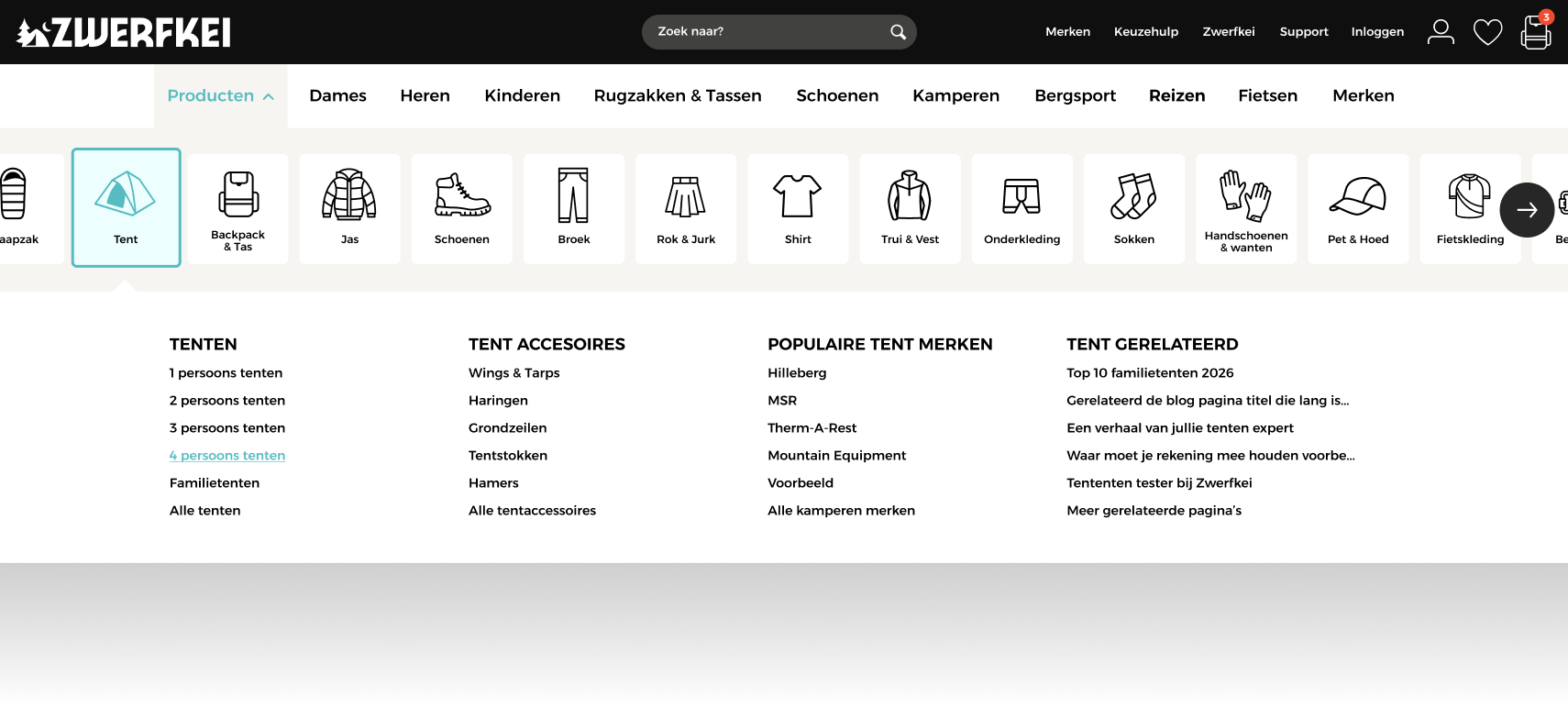
Expanded mega menu dropdown showing nested categories and columns on desktop.
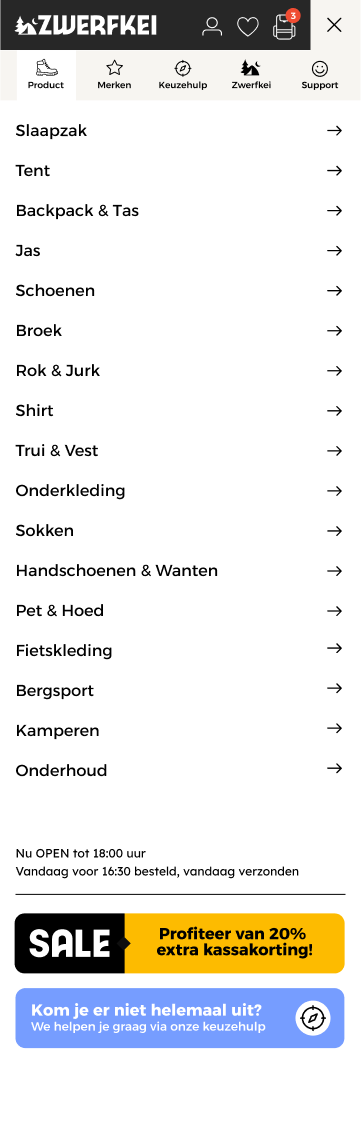
Mobile navigation drawer showing expanded categories list.
Atomic breakdown
The Navigation organism is assembled from several specialized atoms and molecules:
graph TD
    subgraph Templates
        LY[Default Layout]
    end

    subgraph Organism
        NAV["Navigation Organism
(default · mobile)"]
    end

    subgraph Molecules
        M1[Mega Menu Dropdown]
        M2[Search Auto-suggest]
        M3[Mini Cart Trigger]
    end

    subgraph Atoms
        A1[Logo]
        A2[Category Tabs]
        A3[Search Input]
        A4[Wishlist Icon]
        A5[Compare Icon]
        A6[User Icon]
    end

    LY --> NAV
    NAV --> M1 & M2 & M3
    NAV --> A1 & A2 & A3 & A4 & A5 & A6
Connections
Where the Navigation connects and leads:
- Category links navigate to the respective Product Listing Page (PLP).
- Search input feeds query parameters to the search service and redirects to the Search Result Page.
- Wishlist icon leads to the Wishlist Overview.
- Compare icon opens the Compare Page.
- User icon opens the login dialog or leads to the My Account Dashboard.
- Cart bubble toggles the Cart Dialog overlay.