Login Procedure
Navision Zwerfkei is the Microsoft Dynamics NAV client application used by Zwerfkei staff for day-to-day operational tasks. This page documents the login procedure for the NAV client. See README for the broader ERP integration documentation.
RDP connection required
The Navision Zwerfkei application runs on a remote server and is only reachable via the Local Werkplek (RDP) environment. If you haven't connected yet, see Local Werkplek (RDP) first — that page covers the portal URL, 1Password credentials, and how to reach the remote desktop where Navision Zwerfkei lives.
Once you're on the remote desktop, follow these steps to log in to the Navision Zwerfkei client application.
1. Start Navision Zwerfkei
Launch the Navision Zwerfkei application.
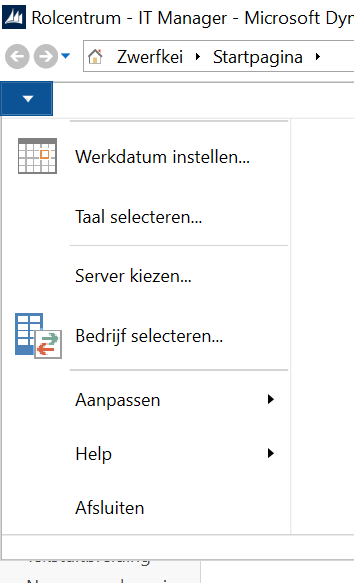
2. Select server
Choose the correct server.

3. Select zwerfkei-nav10:7056/nav_test
Select the zwerfkei-nav10:7056/nav_test server entry.
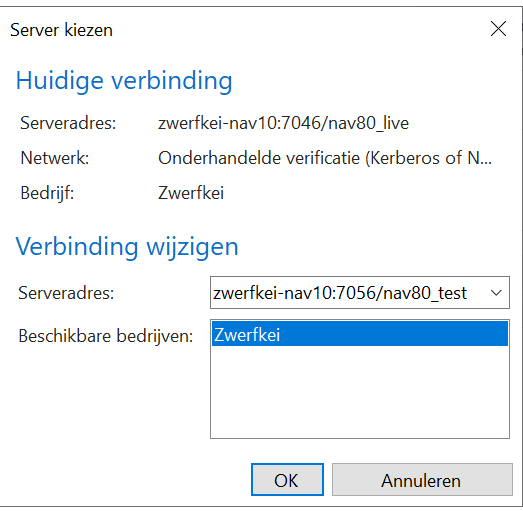
4. Confirm the environment
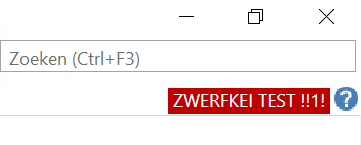
In the top-right corner of Navision, you can see which environment you are currently working in (e.g. test).
Next steps
-
Product, Order & Contact Navigation
Now that you're logged in, find product (Retail-artikelen), order (Transactiejournaal) and contact (Contacten) data.
Adding screenshots
Place the corresponding screenshot files in screenshots/ (next to this page), named to match the image references above (e.g. 01-start-navision-zwerfkei.png).